
Peach Ninja
I wanna see the sticky notes on my home screen!

Admin Ataka
You can do that!

Peach Ninja
What? Tell me how, and hurry up!

Admin Ataka
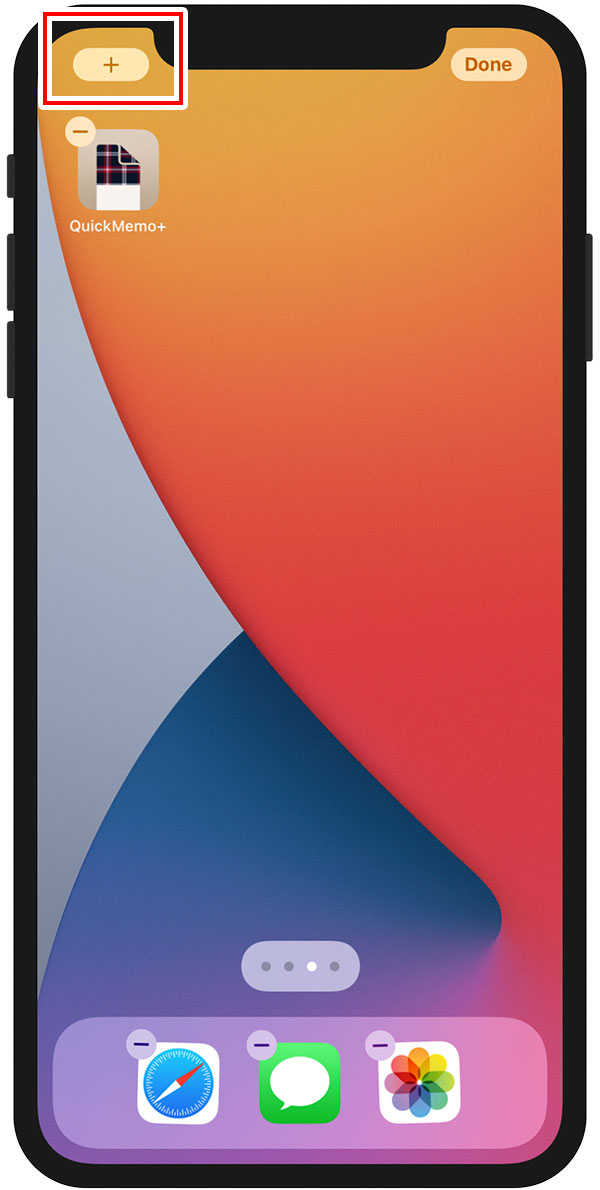
Okay, press and hold on the home screen background, then tap the ‘+’ button that shows up at the top.
(On iPhone SE, 6, 7, 8, and 9, the ‘+’ button is in the top right corner.)
Admin Ataka
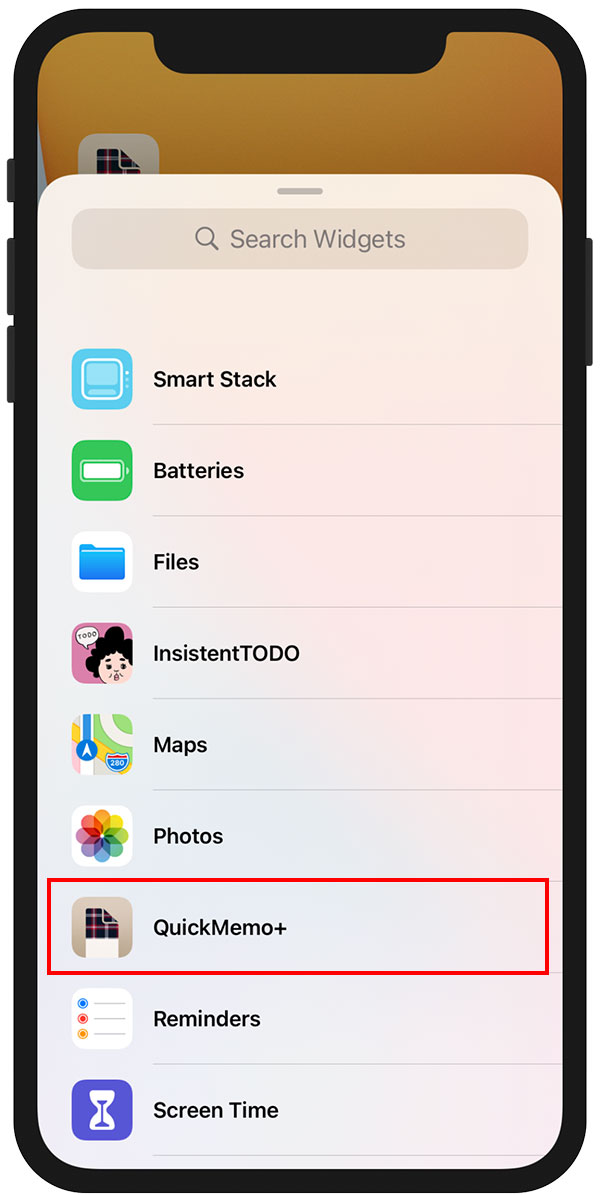
Next, you’ll see a list of apps that can display information on the home screen.
(It’s called a widget.)
You’ll see a list of apps that are compatible with QuickMemo+.
(It’s called a widget.)
You’ll see a list of apps that are compatible with QuickMemo+.
Find and tap QuickMemo+.
If QuickMemo+ isn’t in the widget list, try this:
- First, restart your phone. Hold the power and volume up buttons until a menu appears, then turn off your phone and turn it back on. After that, check if the widget appears.
- If it still doesn’t appear, go to QuickMemo+ settings and do a manual backup. Then, uninstall and reinstall the app. Afterward, check if the widget appears.
Admin Ataka
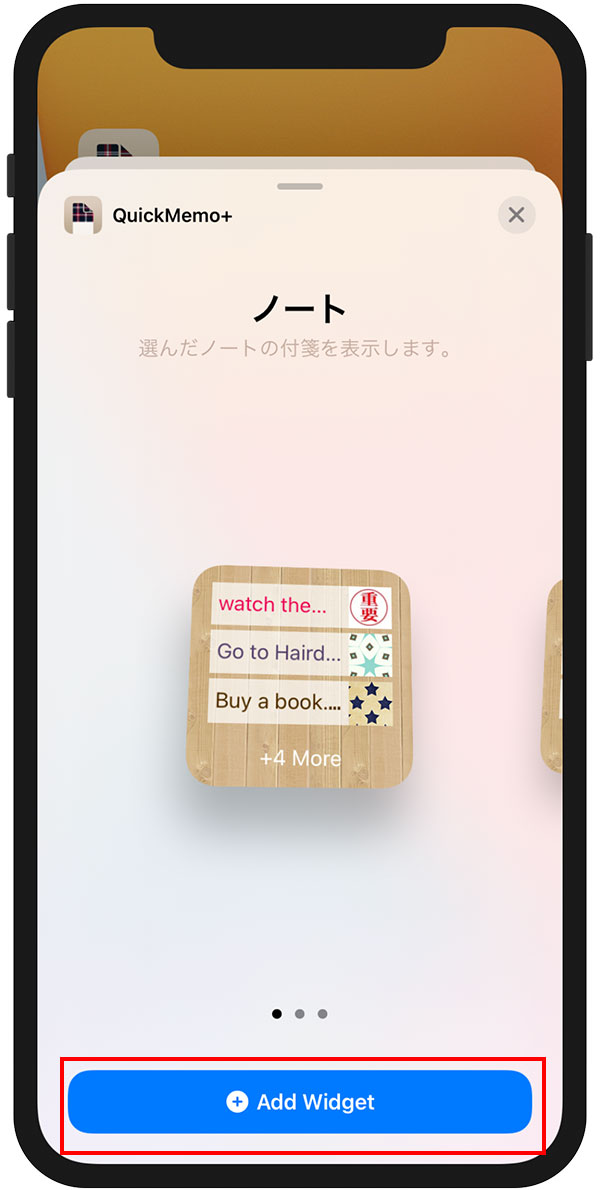
You’ll see three sizes—large, medium, and small. Pick the size you want, then tap the blue ‘Add Widget’ button.
Admin Ataka
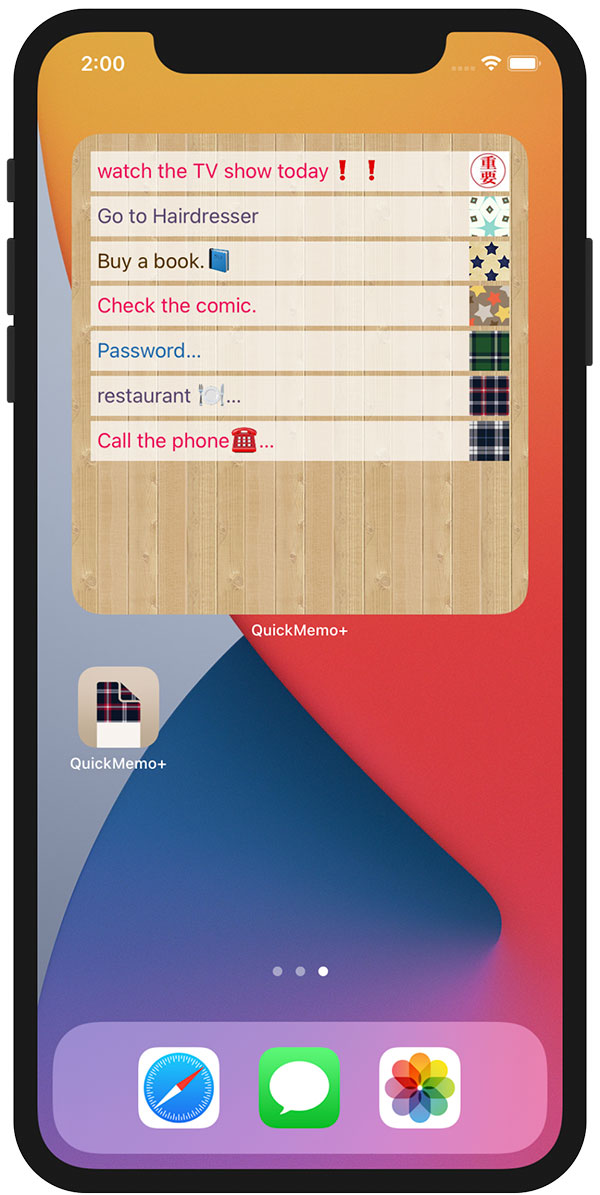
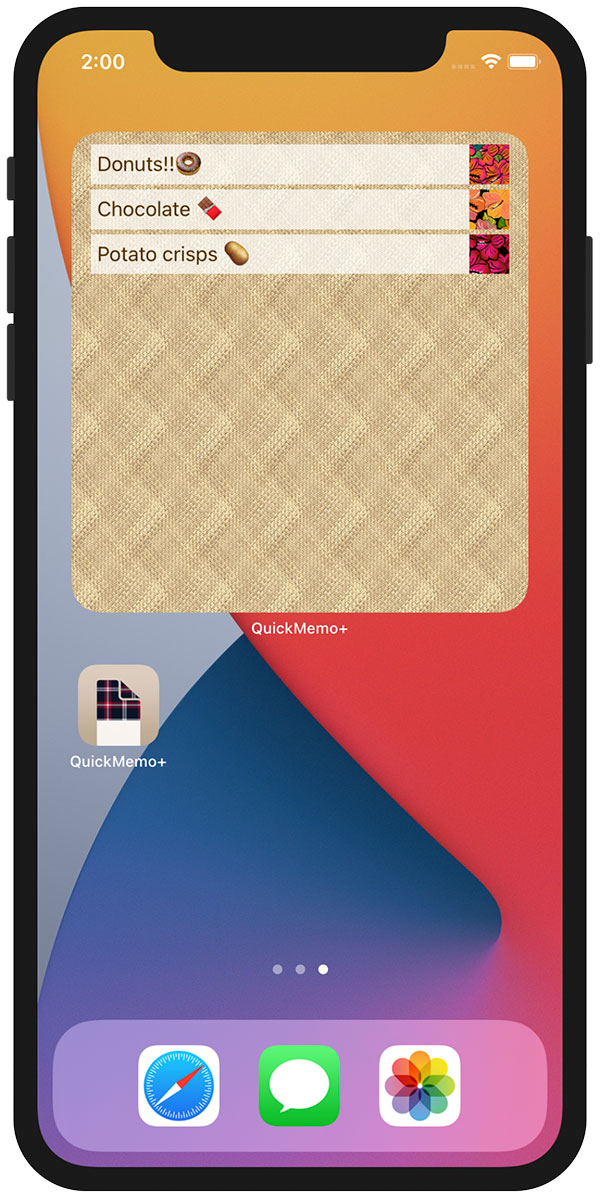
Now you can see the sticky notes on your home screen!
Peach Ninja
I’d love some candy-colored notes!
Admin Ataka
Got it!
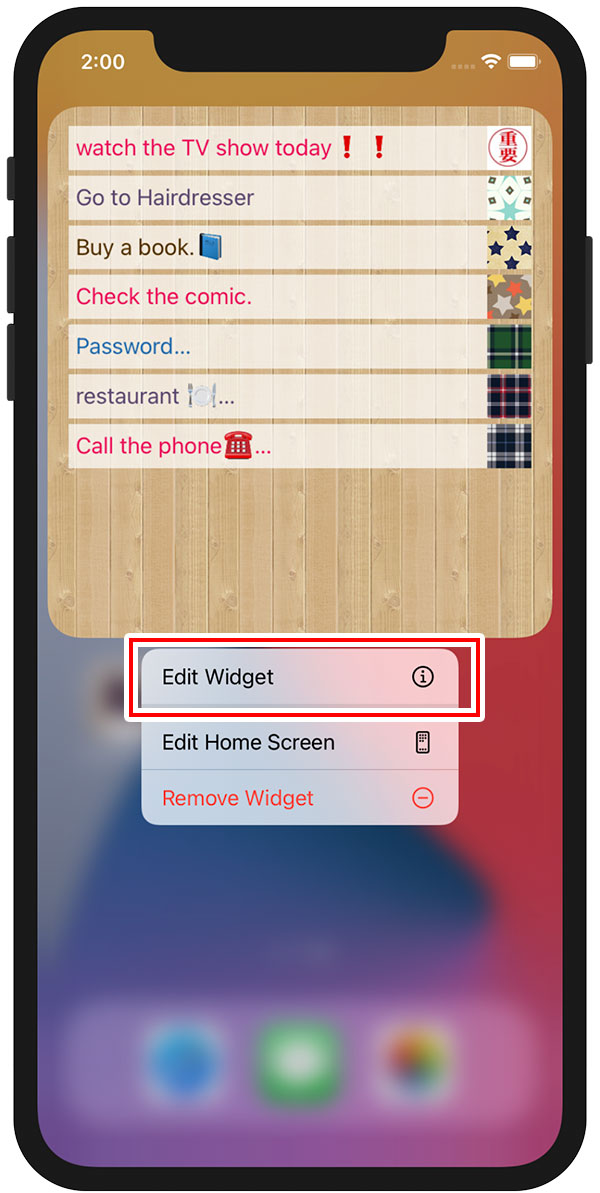
Just press and hold the widget to open the menu, then tap ‘Edit Widget.’
Admin Ataka
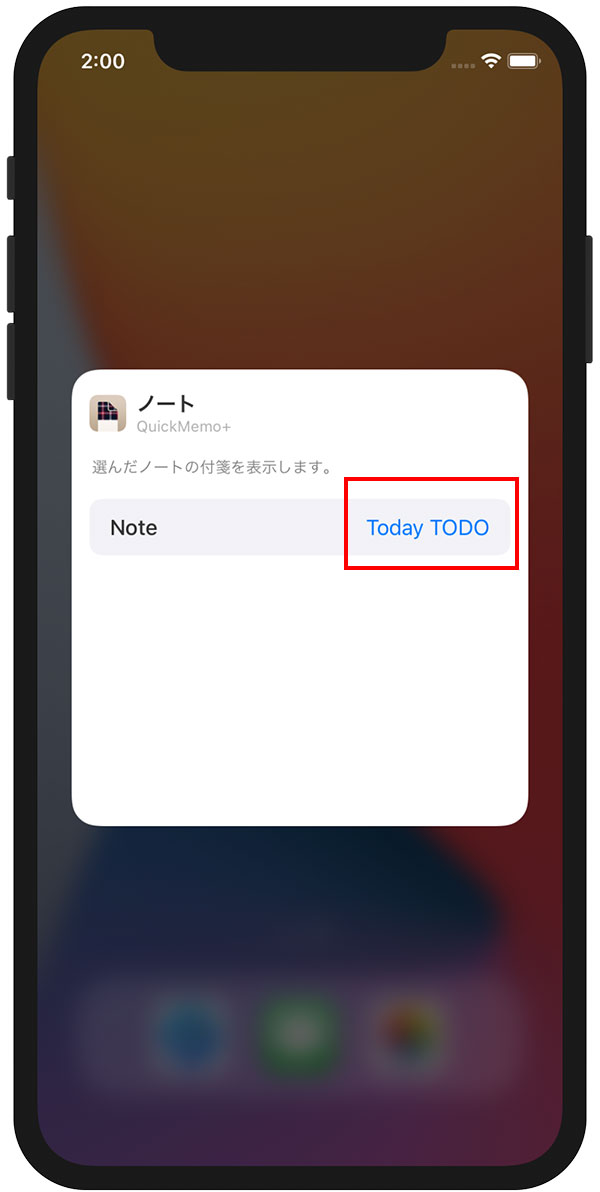
You’ll see the name of the note that’s selected. Tap on it.
Admin Ataka
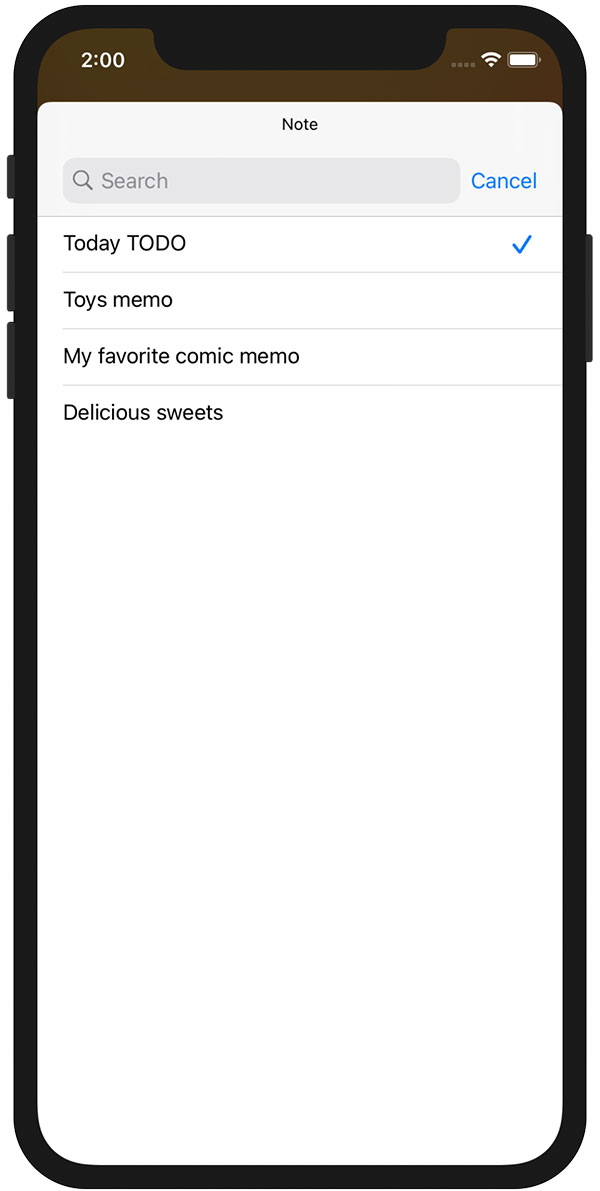
In the ‘Notes List’ that appears, choose the note you want to display.
Admin Ataka
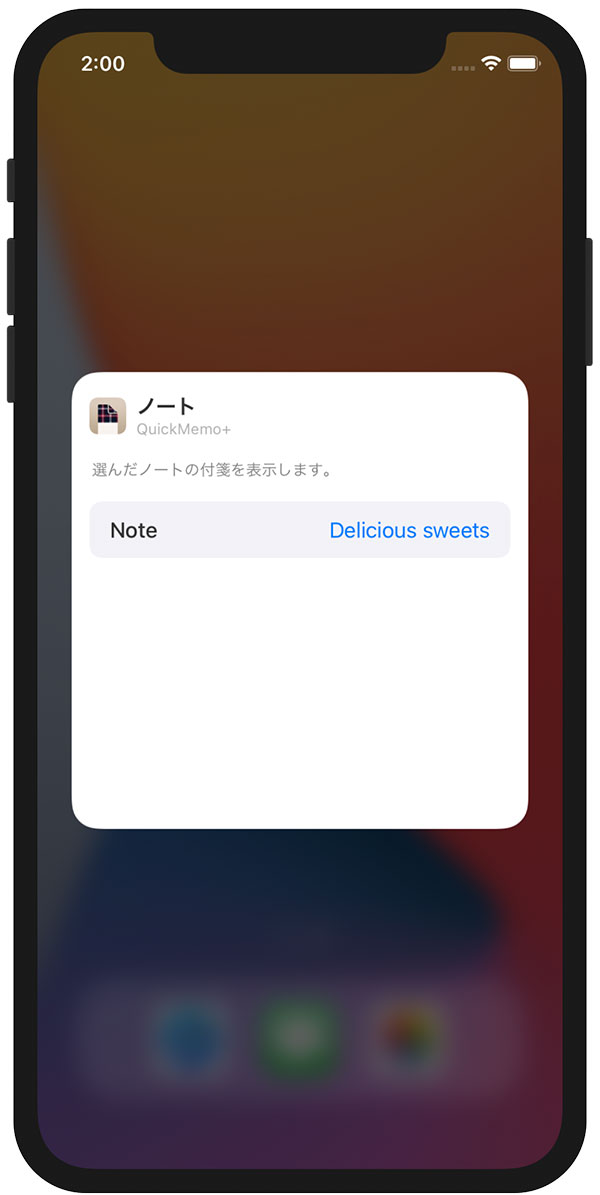
Make sure the name of the note is correct, then tap ‘Done.’
Admin Ataka
Now, the sticky note you chose will show up on your home screen.

Peach Ninja
This is so handy!
Admin Ataka
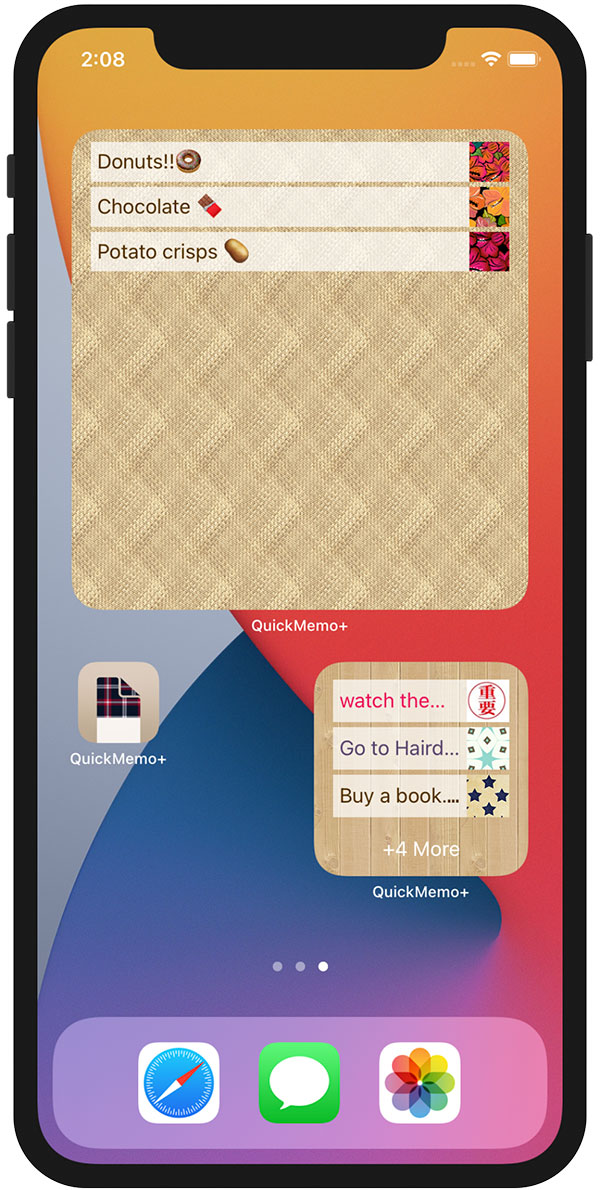
You can add as many widgets as you like, so you can display multiple sticky notes.
Peach Ninja
Okay, got it!