limit
This feature is available with the following plan.
- Premium Plan

Admin Ataka
Let me show you how to duplicate a note and combine two notes!

Peach Ninja
Are there really functions like that? Please show me!
How to Duplicate a Note
Admin Ataka
First, let’s talk about duplicating a note!
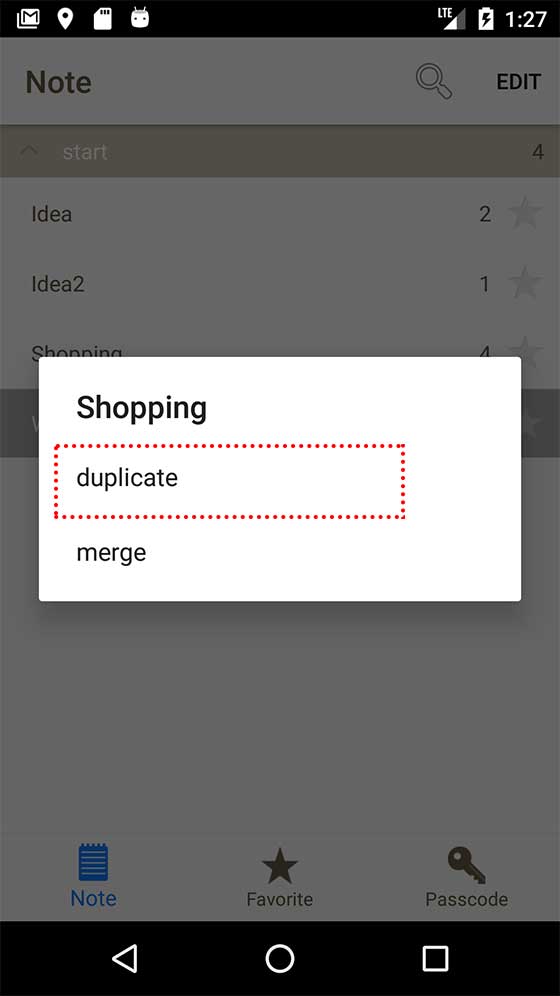
Go to the note list and long-press the note you want to duplicate. A menu with the “Duplicate” option will appear.
Admin Ataka
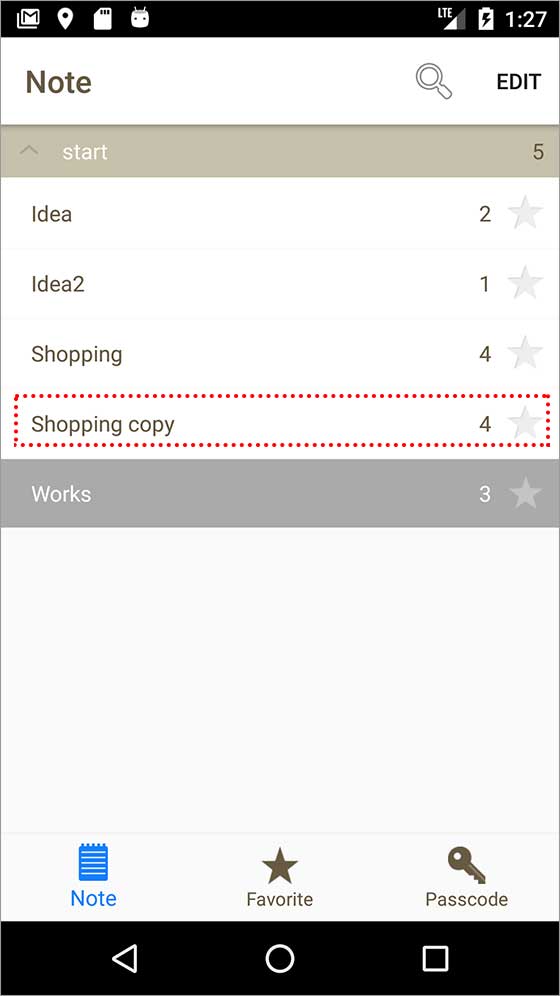
Tap “Duplicate” in the menu, and a copy of the note will be added. All done!
Peach Ninja
Wow! That was so easy; I almost missed it!
How to Merge Notes
Admin Ataka
Now, let’s go over how to merge two notes!
We’ll try merging the “Idea” note with the “Idea 2” note.
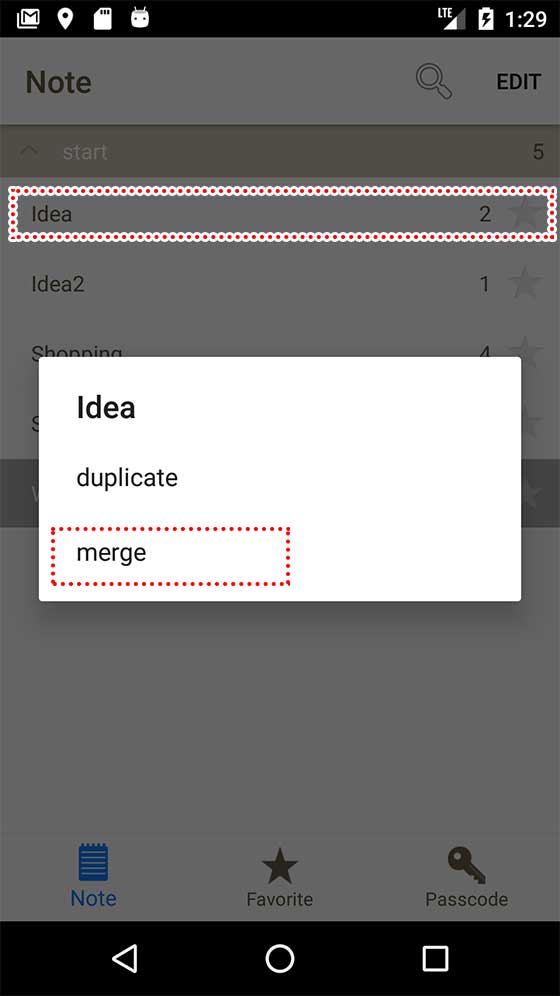
In the note list, long-press the note you want to appear first. The “Merge” option will show up.
Note: The merge option won’t appear if you’re currently viewing the note!
Admin Ataka
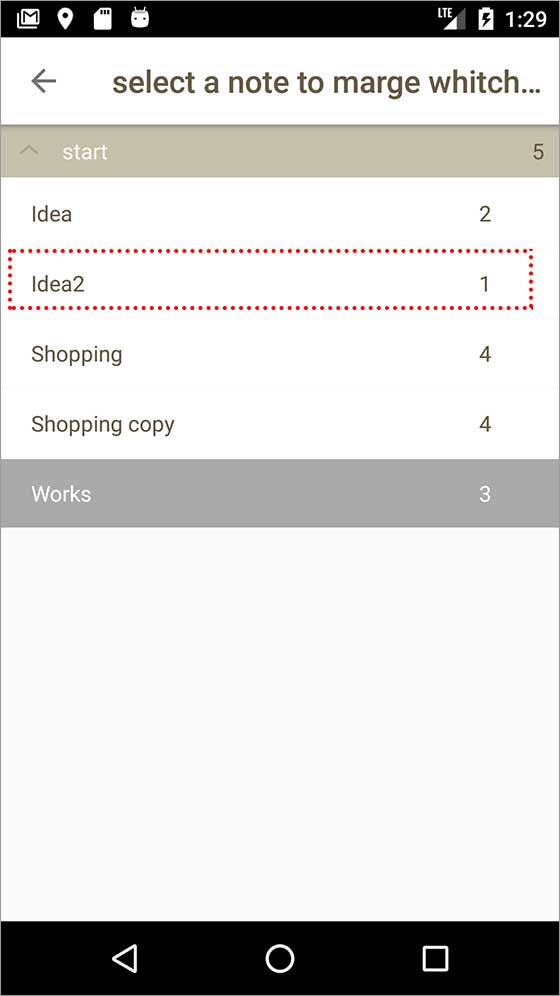
When you tap “Merge” in the menu, you’ll see a screen where you can select the note you want to attach below.
I’ll select “Idea 2” to add it beneath the first note.
Peach Ninja
Alright, let’s see!
Admin Ataka
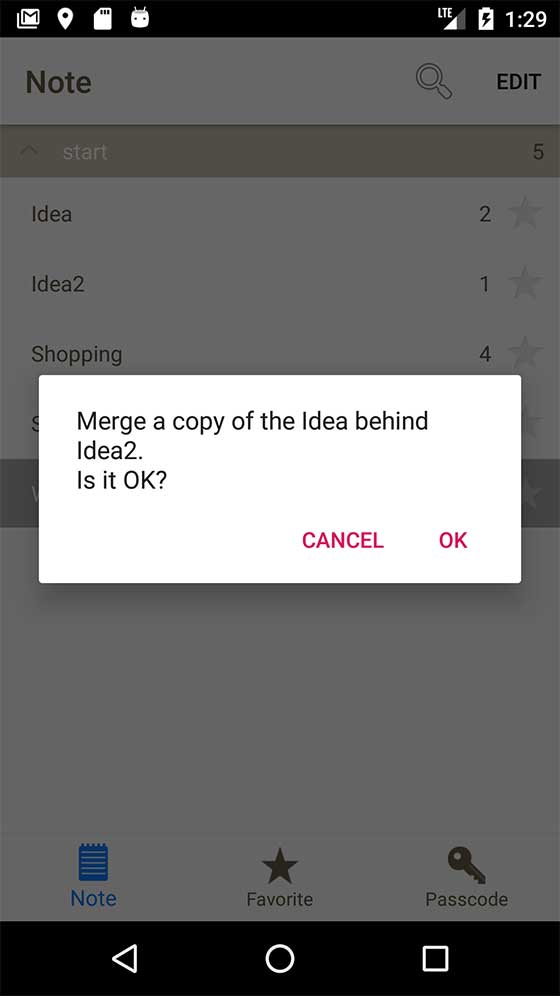
Ready to merge? Just press “OK” to confirm.
Admin Ataka
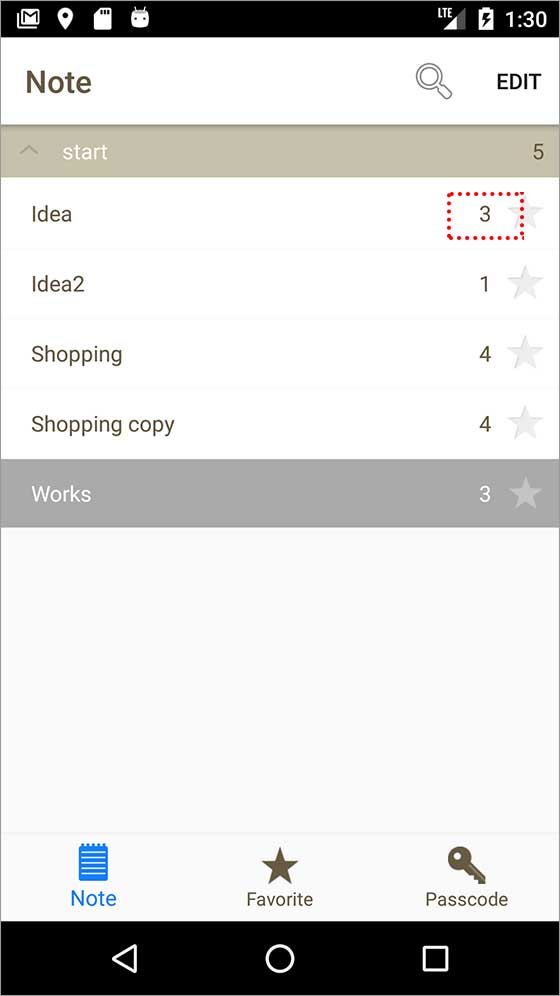
And done! “Idea 2” has been merged with “Idea,” and the total number of stickies has changed from 2 to 3!
Peach Ninja
Even after merging, the original “Idea 2” note stays intact. That’s great—I tend to make mistakes all the time!