
Admin Ataka
Let me explain how to set up a passcode!

Peach Ninja
All my notes are amazing. They must stay private!
Setting a Passcode
Admin Ataka
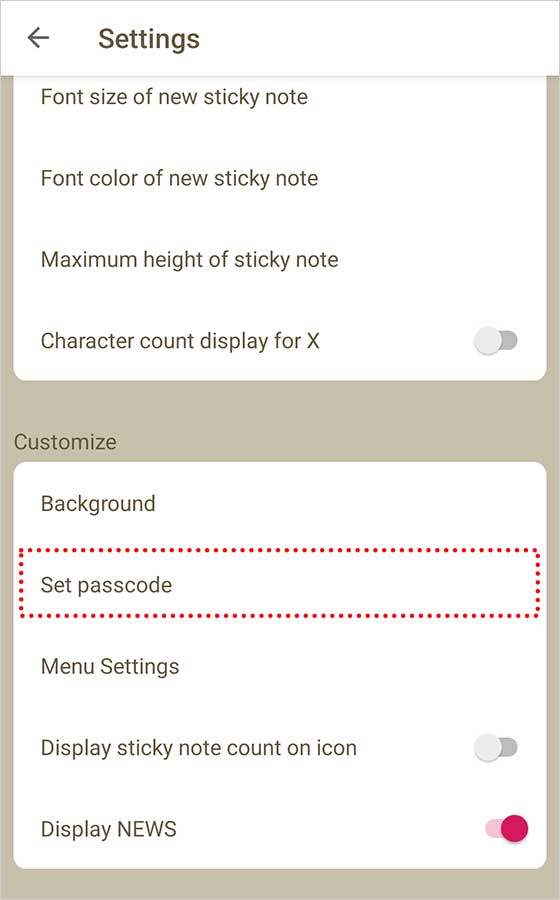
First, let’s set up a passcode. Go to the settings screen and select “Set passcode.”
Admin Ataka
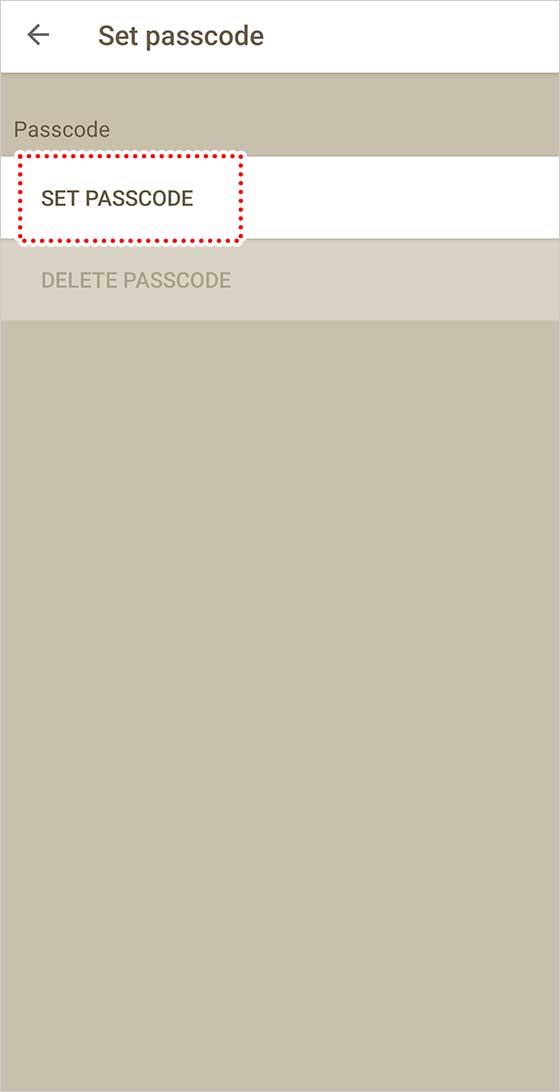
Next, choose “Set Passcode.”
Admin Ataka
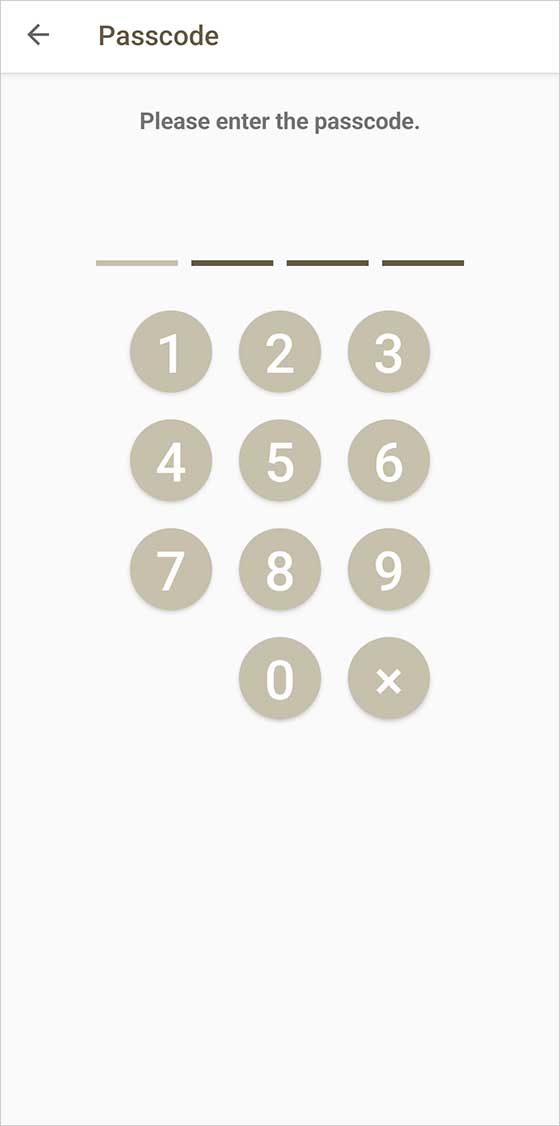
When the passcode entry screen appears, enter the four digits you want to use.
Admin Ataka
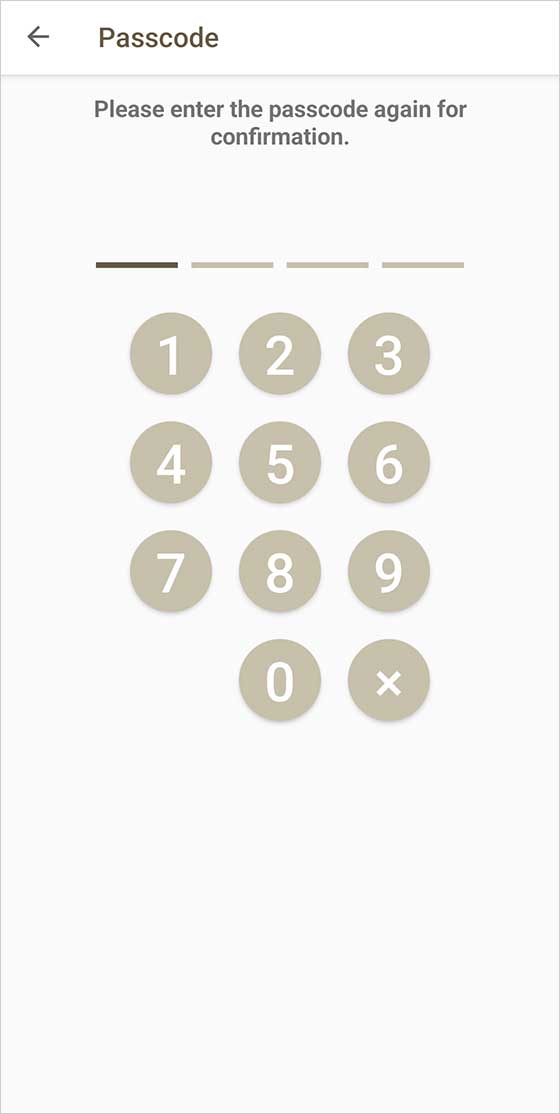
A confirmation screen will appear. Just re-enter the same four digits to confirm.
Admin Ataka
That’s it! Your passcode is now set up.

Passcode for Secret Notes Only
Admin Ataka
To keep things convenient, the passcode is only required for “Secret Notes.”
Peach Ninja
What exactly is a “Secret Note“?
Admin Ataka
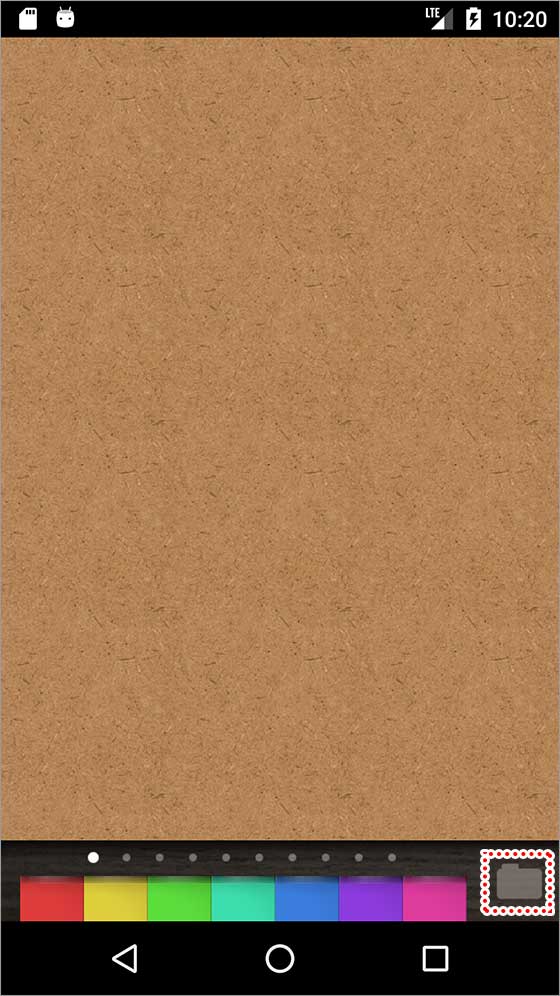
Tap the “Folder” button at the bottom right of the screen to open your note list.
Admin Ataka
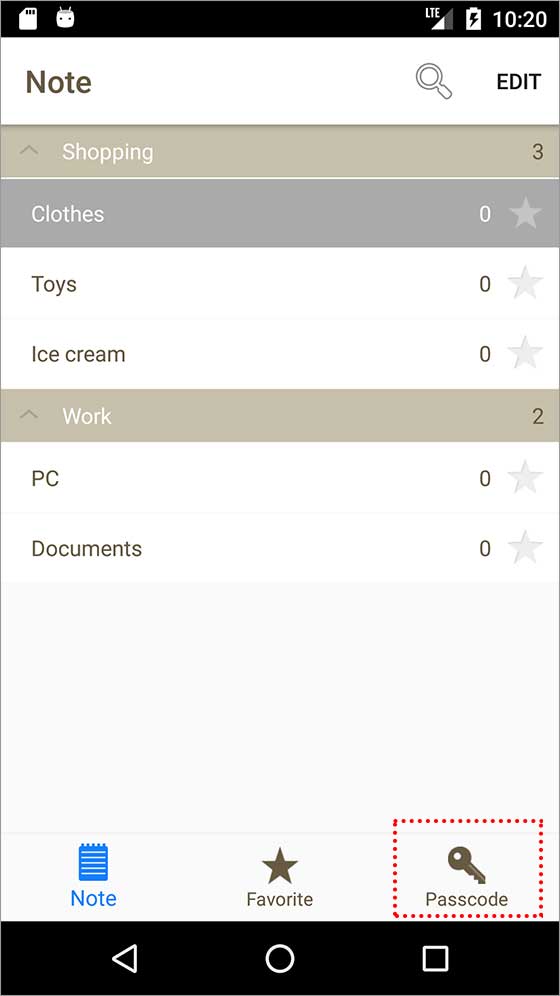
At the far right of the bottom tabs, you’ll see one labeled “Secret Note.”
Only notes saved here will require a passcode to open.
Peach Ninja
Got it!
Admin Ataka
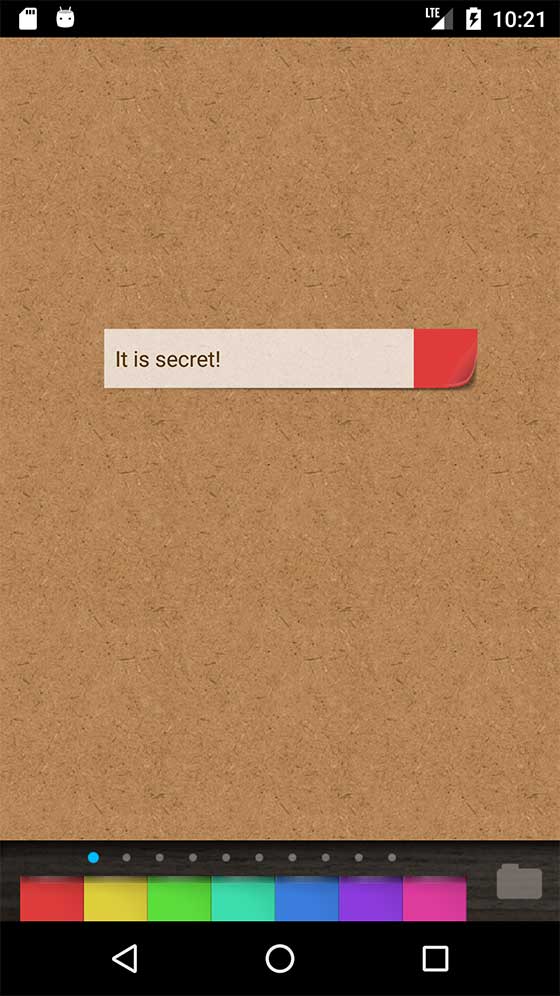
Let’s create a test note in the Secret Notes section to see how it works.
Admin Ataka
Now, go to the home screen or close the app. When you return to QuickMemo+, the passcode screen will pop up to protect your notes.
Peach Ninja
Nice! My notes are safe. That was a close call!